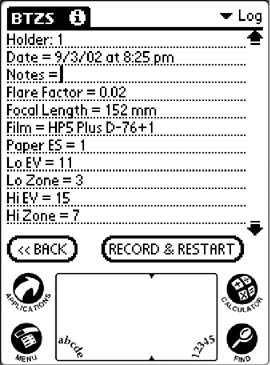
 You
will have bypassed the Timer and arrived here directly from the “Working Data”
screen if you used an exposure time of less than 1 second. The log contains a
complete record of your materials and operating choices. It occupies more than
one page so you’ll have to use the scroll arrows or buttons to review all the
data. As mentioned previously, you can also access the “Log” screen (or any
other) from anywhere in the program by tapping on the Category name in the upper
right corner of each screen and selecting your destination from the drop-down
list.
You
will have bypassed the Timer and arrived here directly from the “Working Data”
screen if you used an exposure time of less than 1 second. The log contains a
complete record of your materials and operating choices. It occupies more than
one page so you’ll have to use the scroll arrows or buttons to review all the
data. As mentioned previously, you can also access the “Log” screen (or any
other) from anywhere in the program by tapping on the Category name in the upper
right corner of each screen and selecting your destination from the drop-down
list.
The Pilot stamps each log record with the date and time, and you can enter
extensive descriptive information about the subject or the exposure conditions
by tapping on the “Notes” line to position the cursor there, then writing your
comments in the Graffiti area.
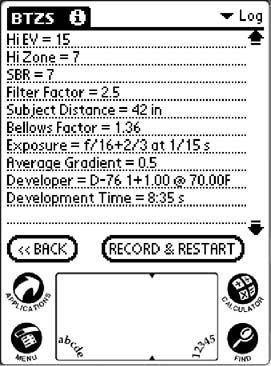 If
after viewing the “Log” screen you want to return to the program to make changes
before saving the log record, tap the “Back” button or skip back to one of the
locations in the Category drop-down list. If you return to the Constants screen
and change one of the values there, then skip back to the Log screen, you’ll
find the changes recorded in the record, but the calculated values will not have
been updated. Don’t save the Log record at this point! To see the result of your
changed Constants values, and provide accurate data for the Log, you must step
through the program screens so that the new Constants values can be used in the
calculations.
If
after viewing the “Log” screen you want to return to the program to make changes
before saving the log record, tap the “Back” button or skip back to one of the
locations in the Category drop-down list. If you return to the Constants screen
and change one of the values there, then skip back to the Log screen, you’ll
find the changes recorded in the record, but the calculated values will not have
been updated. Don’t save the Log record at this point! To see the result of your
changed Constants values, and provide accurate data for the Log, you must step
through the program screens so that the new Constants values can be used in the
calculations.
When you’re ready to start a new exposure calculation, and wish to save the present log record, tap on the “Record & Restart” button. This will write the log information into a Category named “BTZSLogs”, erase your current program data (except your constants values), and take you directly back to the “Constants” screen.
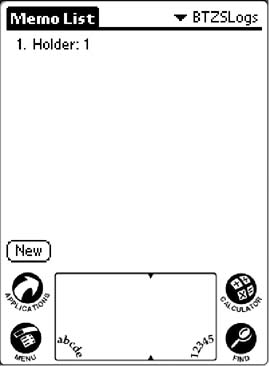 If
you have not previously created this “BTZSLogs” Category the program will prompt
you to do so. Tap the Applications button, then tap the Memo Pad icon, and
you’ll arrive at a “Memo List” screen. Tap the Category area and
select “Edit Categories” from the drop-down list. Tap on “New” and enter the
name “BTZSLogs” (no space). Tap “OK” to return to the ”Memo List” screen then
check the Category List and you should see “BTZSLogs” included there.
If
you have not previously created this “BTZSLogs” Category the program will prompt
you to do so. Tap the Applications button, then tap the Memo Pad icon, and
you’ll arrive at a “Memo List” screen. Tap the Category area and
select “Edit Categories” from the drop-down list. Tap on “New” and enter the
name “BTZSLogs” (no space). Tap “OK” to return to the ”Memo List” screen then
check the Category List and you should see “BTZSLogs” included there.
You can access and edit your stored log records just as you’d work with any other memo. Tap on the Applications button, then tap the “Memo Pad” icon. If “BTZSLogs” is not displayed in the Category area, tap the area to see the drop-down list and select it. The “Memo List” screen will then show a list of your stored records, identified by Holder number and/or some brief identifying comment. Tap on any item in the list and that record will be displayed. You can scroll through the items in a single record by using the scroll bar and arrows. If you use the scroll buttons you’ll scroll through the records if there are more than one.
If you want to keep a permanent record of your exposures you can HotSync the
Pilot to transfer a copy of the memo log file to your desktop computer.